![prokon_logo-3.svg]](https://client.prokon.com/hubfs/prokon_logo-3.svg)
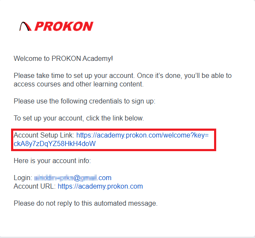
- In the email “Account details for PROKON Academy”, Follow the “Account Setup Link”
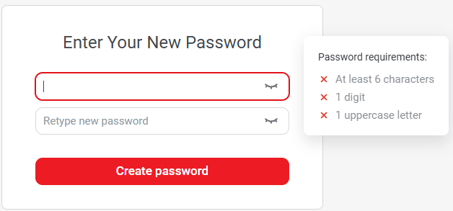
- After following the link, enter and confirm your new password
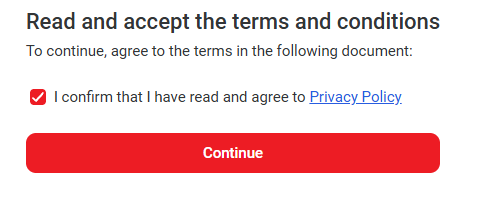
- After setting up your password, you must read and accept the T&C’s
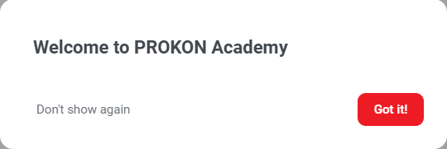
- Dismiss the pop-up “Welcome to PROKON Academy”
- The default page will be “My Courses”, showing all that you are enrolled in
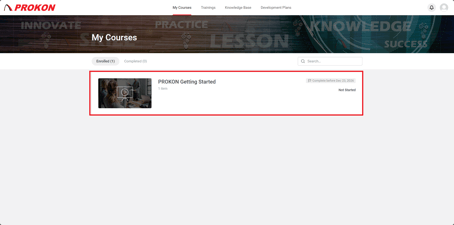
- Click the course name to view the course contents
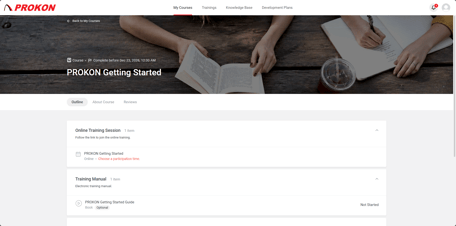
- Under “Online Training Session”, click the name of the session
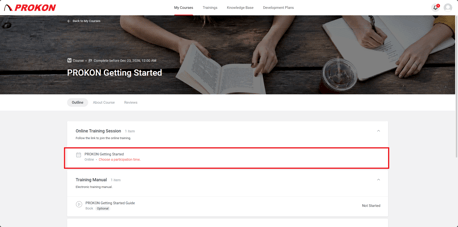
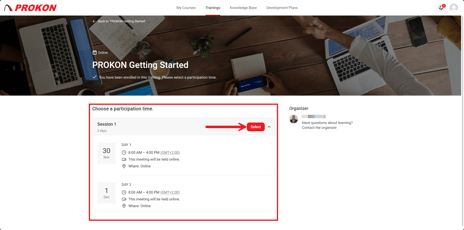
- For “Choose a participation time”, click Select for the appropriate Session
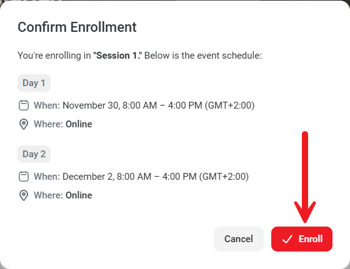
- Click “Enroll” to confirm Enrollment to the relevant session
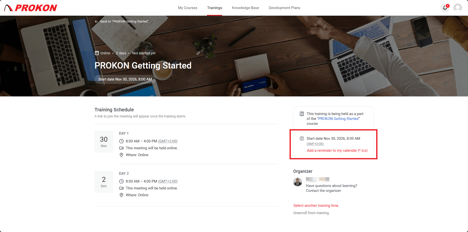
- Click the "Add a reminder to calendar " area to add a reminder to your calendar
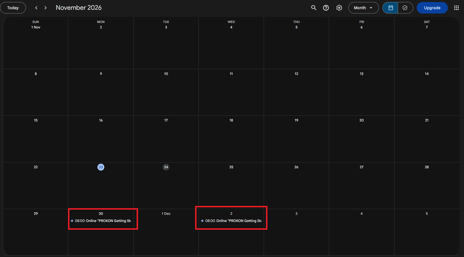
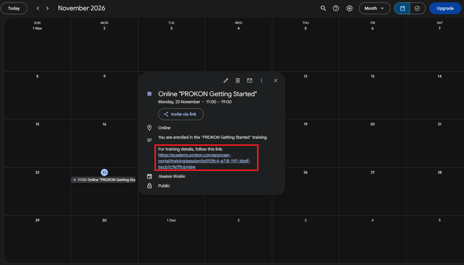
- Import the .ics file into your relevant calendar app (Image shown is for Google Calendar via Gmail)
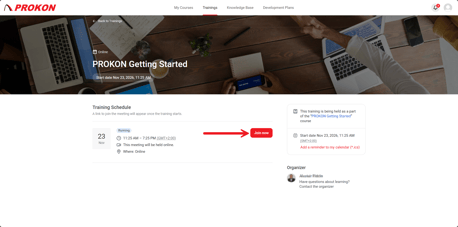
- On the day of the training, follow the link in the calendar entry to go to the “Training Schedule” in PROKON Academy
- In PROKON Academy, select “Join Now” and follow the prompts to join the meeting